Loyalty Points Manager

Hey everyone! I'm excited to introduce my brand new loyalty points manager app! It's designed to make keeping track of your loyalty points simple. And to make it even better, it comes with a built-in WhatsApp notification feature so you never miss an update on your points.
Let's jump right in and see how to use it. The app has two tabs: 'All Customers' and 'Settings'.
The "All Customers" Tab:

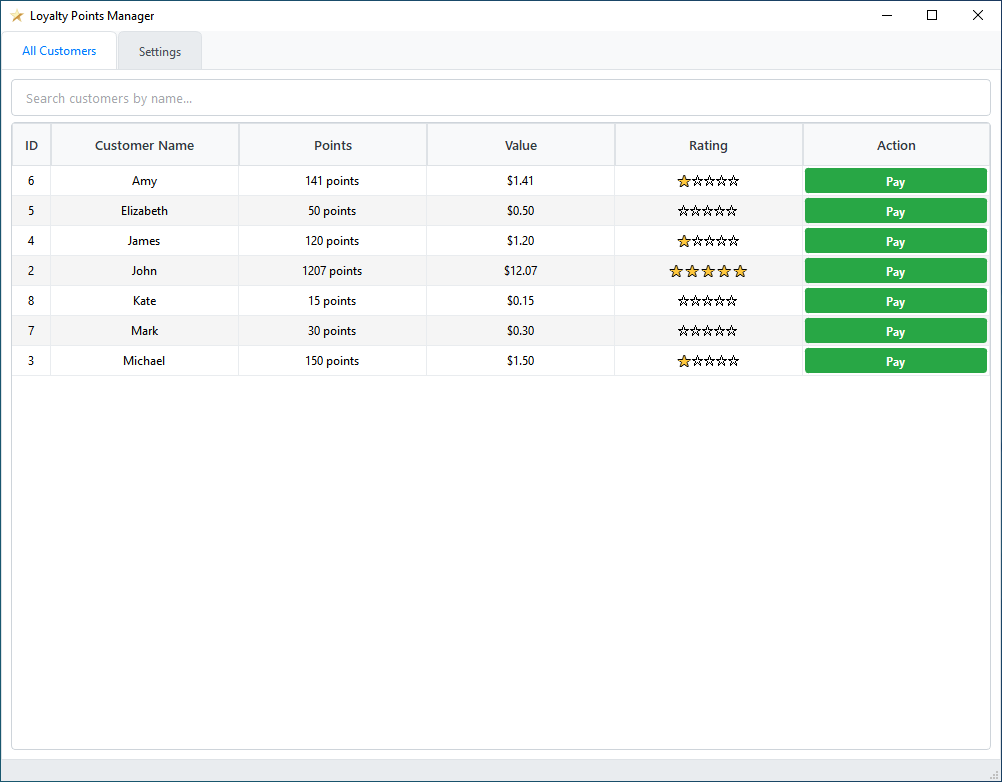
This tab is your primary interface for viewing customer loyalty data and processing point redemptions, and it has two main widgets:
1. Search Customers by Name:
-
Located at the top of this tab, you'll find a search bar (text input field).
-
Type a customer's name (or part of it) here, and the table below will instantly filter to show only matching customers, making it easy to find someone quickly.
-
Clearing the text in this field will display all customers again.
2. Customer Information Table:
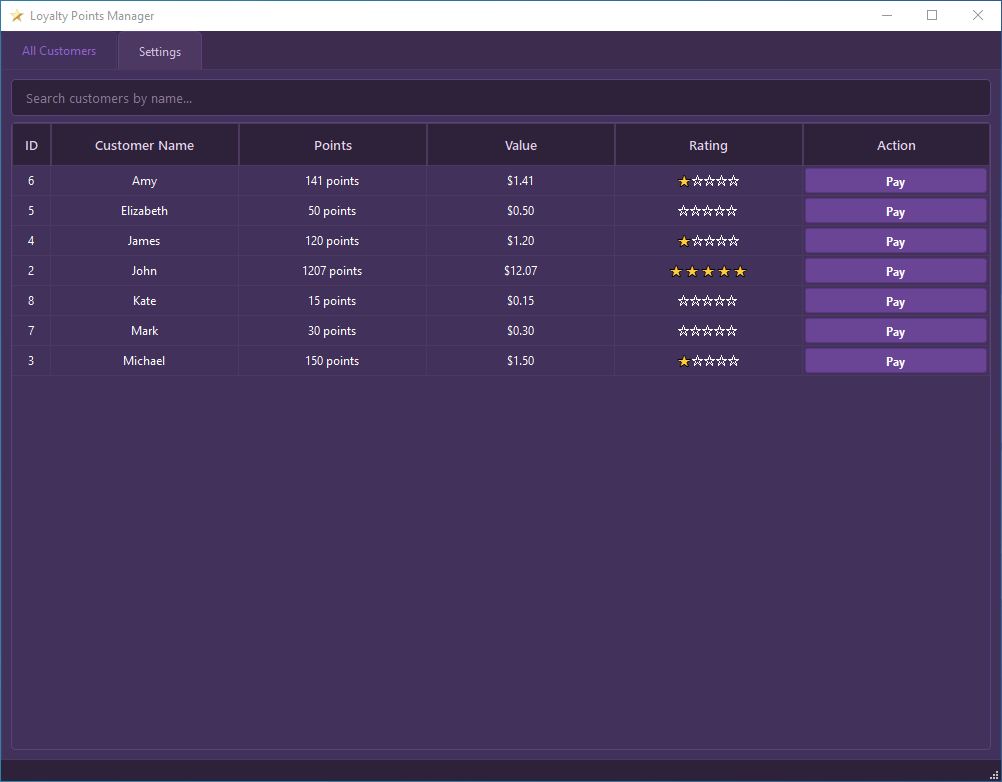
This is the main part of the tab, listing your loyalty program members. Each row represents a single customer, and the columns display specific details:
-
ID: Shows a unique identification number assigned to each customer in the system.
-
Customer Name: Displays the full name of the customer.
-
Points: Shows the customer's current loyalty point balance (e.g., "1250 points"). This value updates automatically as customers earn or spend points.
-
Value: Displays the monetary equivalent of the customer's current points (e.g., "$12.50"), calculated based on the "Points per 1 [Currency Symbol]" setting you configured in the "Settings" tab.
-
Rating: Shows a visual star rating (e.g., ⭐⭐⭐☆☆) representing the customer's current loyalty tier, determined by their total points and the "Customer Rating Settings."
-
Action ("Pay" Button): Each customer row features a "Pay" button. Clicking this button for a specific customer opens a new dialog window, allowing you to process a payment using that customer's accumulated loyalty points.
The "Settings" Tab:
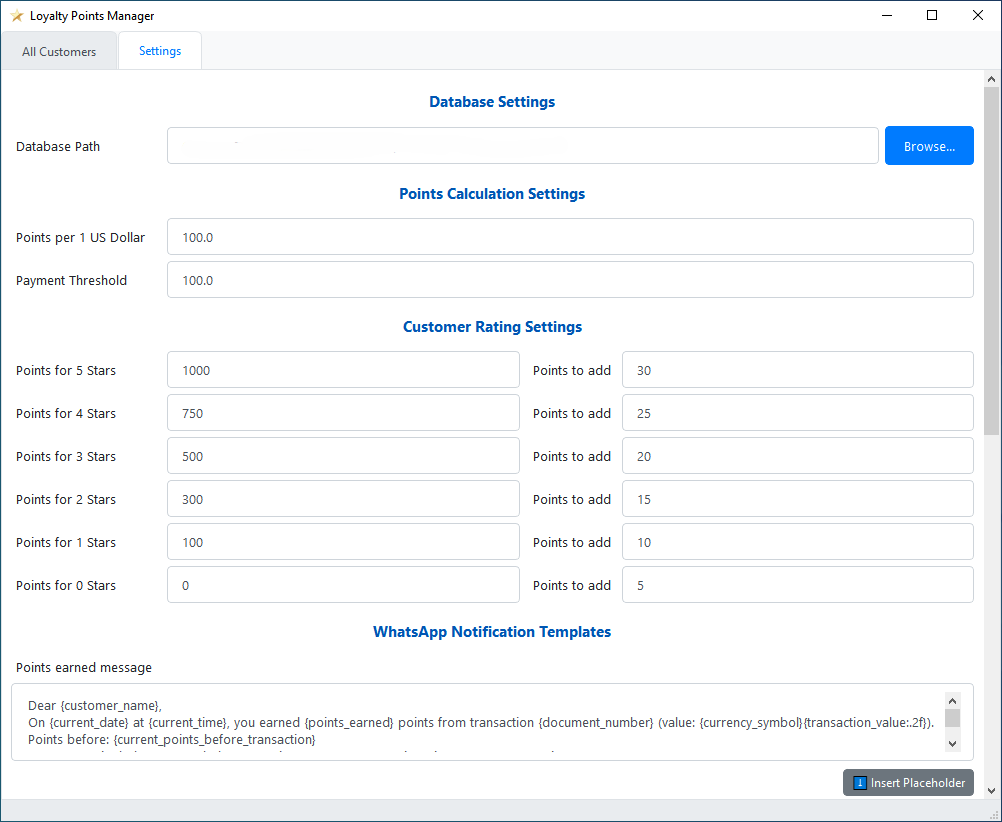
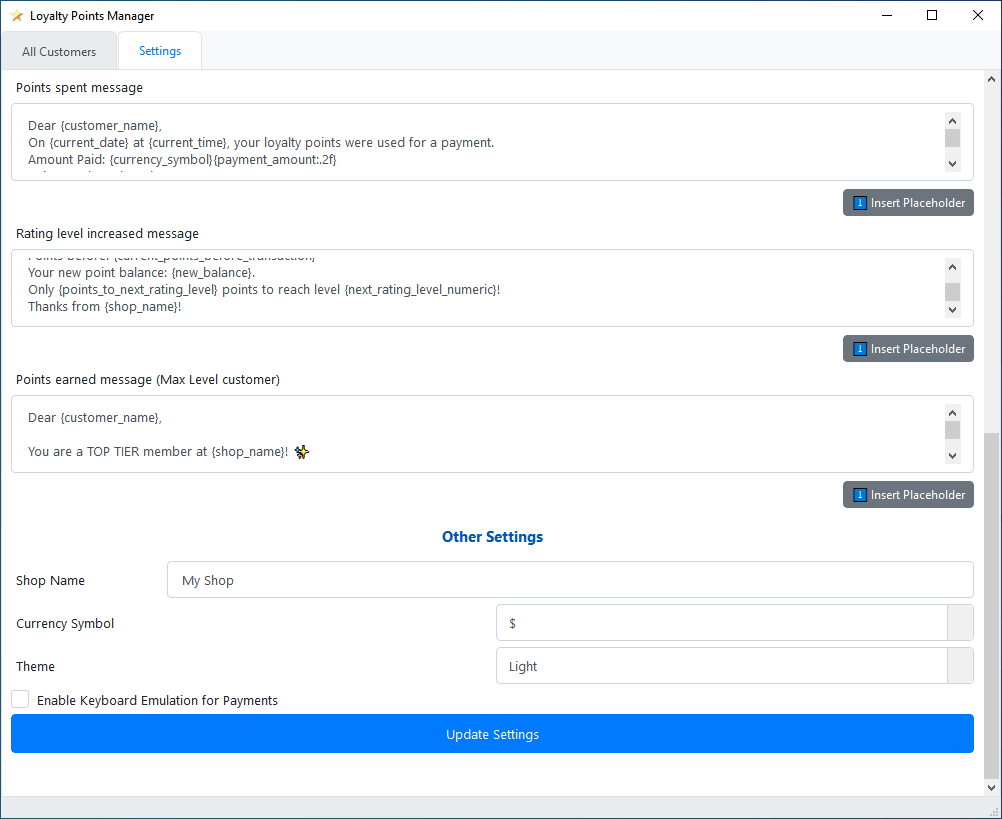
This tab allows you to customize how the Loyalty Points Manager operates. Here, you can configure database connections, points calculation rules, customer ratings, notification messages, and application appearance. Settings are grouped into expandable sections for clarity.
Database Settings
Configure how the application connects to your customer and transaction data. This section includes:
-
Database Path: Enter the full file path to your SQLite database file. Alternatively, click "Browse..." to open a file dialog and select your database file. The application will attempt to connect to this database when the path is set or changed.
Points Calculation Settings
Define how loyalty points are calculated and can be used. This section includes:
-
Points per 1 [Currency Name] (Input Field): Enter the number of loyalty points a customer earns for each unit of your selected currency spent (e.g., if set to 100, and currency is "$", then $1.00 spent earns 100 points). The label "[Currency Name]" updates based on your "Currency Symbol" choice.
-
Payment Threshold (Input Field): Enter the minimum transaction value (in your currency) required for a customer to automatically earn points for that sale (e.g., if set to 10.00, sales below this amount won't earn points automatically).
Customer Rating Settings
Define point thresholds for different customer rating (star) levels and the points awarded per transaction for customers at each level. This section includes:
-
Points for X Stars (Input Field): Enter the total loyalty points a customer must accumulate to achieve a specific star rating (e.g., "Points for 5 Stars": 1000).
-
Points to Add (Input Field): Enter the number of additional points a customer at this X-star level will earn per qualifying transaction (e.g., for a 5-star customer: 30 points).
WhatsApp Notification Templates
Customize the automated WhatsApp messages sent to customers. Default templates are provided, which you can edit:
-
Points earned message (Text Area): Edit the template for messages sent when a customer earns points.
-
Points spent message (Text Area): Edit the template for messages sent when a customer redeems points.
-
Rating level increased message (Text Area): Edit the template for messages sent when a customer's rating level increases.
-
Points earned message (Max Level customer) (Text Area): Edit the template for messages sent when a top-tier (max rating) customer earns points.
"⬇️ Insert Placeholder" Button (per template):
Below each template editor, click this button to see a menu of available placeholders (e.g., {customer_name}, {points_earned}). Selecting a placeholder inserts it into the template at your cursor's position, allowing for dynamic message content.
Other Settings
Configure general application behavior and appearance. This section includes:
-
Shop Name (Input Field): Enter your shop or loyalty program name. This name can be used in WhatsApp notification templates (via the {shop_name} placeholder).
-
Currency Symbol (Dropdown Menu): Select the currency symbol (e.g., $, €, £) used throughout the application and in calculations. This also updates the label for "Points per 1 [Currency Name]".
-
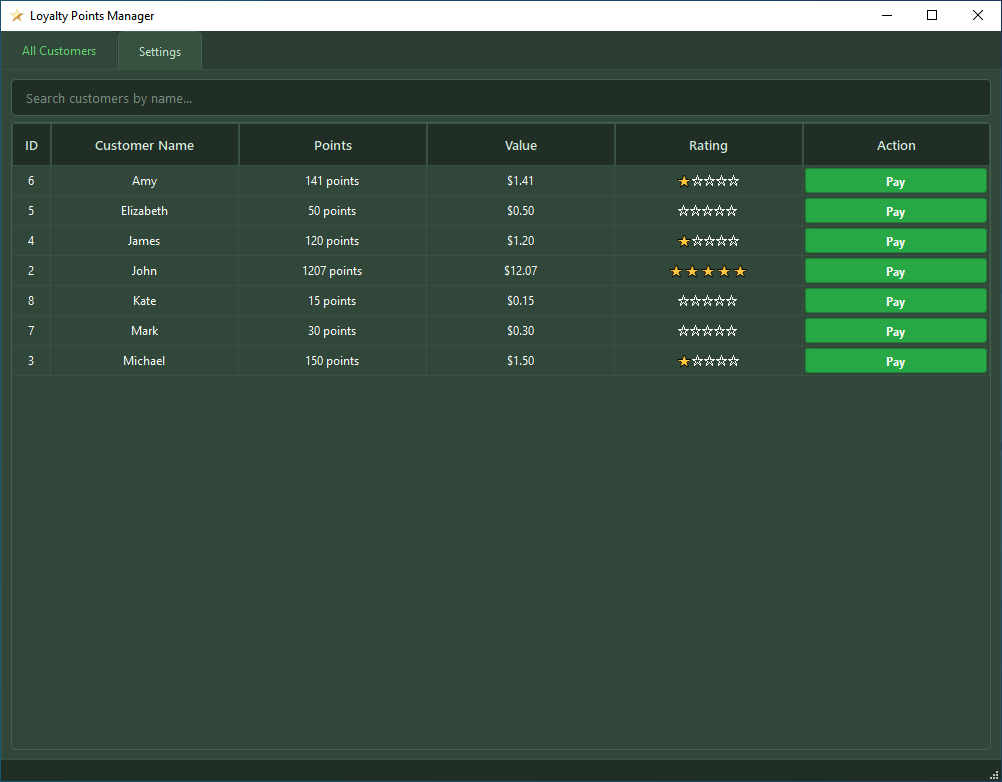
Theme (Dropdown Menu): Choose the visual theme for the application. The application's appearance will change immediately. The available themes include:
Light
Dark

Green
Blue

Red

Purple
-
Enable Keyboard Emulation for Payments (Checkbox): If checked, the application will attempt to type the payment amount into your POS system automatically when processing a points payment. Important: Ensure your POS payment field is active before confirming payment.
Update Settings (Button)
Click this button to save all changes made in the "Settings" tab. Some changes (like the Database Path) may trigger a data reload. A confirmation message will appear briefly after saving.
Note: This app is not yet complete, but I wanted to give you a preview. Stay tuned for more details.
-
Hey Rushdy Musammir,
I'll add the LKR symbol, no problem. Now, for the bot service, could you please provide a detailed, step-by-step explanation of the process you used? A small, easily overlooked detail is often the root cause.
I will add another method for sending notifications alongside WhatsApp.
-
It appears that the WhatsApp setup number has been updated. Check the following link to get the most recent one:
https://www.callmebot.com/blog/free-api-whatsapp-messages/ -
Have you tried sending an API request using the following endpoint?
https://api.callmebot.com/whatsapp.php?phone=[phone_number]&text=[message]&apikey=[your_apikey]Just replace the phone number, apikey, and message text with your own values, then paste the full URL into any browser to test it.
-
Hey everyone,
Loyalty Points Manager has been updated.
Here’s what’s new:
New Currency Added: Sri Lankan Rupee (LKR)
You can now select the Sri Lankan Rupee (LKR) as your currency in the Settings tab.
Enhanced Customer Notifications: Choose Your Platform!
You now have more control over how you communicate with your customers. A new "Platform" dropdown menu has been added for each customer in the main table. You can now choose to send automated notifications and custom messages via:
-
WhatsApp
-
Facebook Messenger
Simply select the desired platform for each customer. The application will use that choice for all future notifications for that person. If you don't want to send notifications to a specific customer, just select "None".
For complete instructions on how to configure Facebook Messenger notifications, check the official CallMeBot setup guide at the link below:
https://www.callmebot.com/blog/facebook-messenger-custom-commands/
Download link:
https://mega.nz/file/5d8mCRCZ#RTPdMDRZZCZONwkYjmZbtYOQA7v2KhUAN-LUw-qgNQk
-
-
Hey Rushdy,
The process for setting up Facebook Messenger is exactly the same as how you configure WhatsApp.
All you need to do is:- Get the Messenger API Key: Each customer who wants Messenger notifications needs their own unique API key from the CallMeBot service.
- Paste the Key into the 'Code' Field: Once you have the key, open that customer's profile in Aronium and paste the key directly into the 'Code' field. This is the same field you use for the WhatsApp API key.
After pasting the key, simply select "Facebook Messenger" as the platform in the Loyalty Manager, and it will work perfectly.
-

Hi John,
I'm from Pakistan, and I'm really happy to read this post, truly appreciate your efforts! I had been looking for this method, points, and WhatsApp notifications, and it’s amazing that I found all of them in the same day and in the same post.
I know just saying thank you isn’t enough, but still thank you so much for sharing this helpful information!
I also have a humble request: please consider adding the PKR currency (Rs) option as well. That would be a great addition for users from Pakistan.
And please share the updated link again -

Hi John, Love the time and effort you have put in to this. I am having a bit of a problem with it though. I have been trying to configure it to my Aronium database (.db file) and i just keep getting an error message. "could not connect to database" please explain what I am doing wrong.
Regards Rose
-
Hey Abdullah Khan,
Thank you so much for your incredibly kind message. I'm glad to hear that the app is exactly what you were looking for. I added Pakistani rupees (PKR) based on your request.
Download link: https://mega.nz/file/BZFCRCpK#f76F7_tXXZmvZTVkmlDIz2tvXPSkGLkYCMtugKnaitQ
-
Hey Rose Dubreu,
Thank you so much. It’s most likely a permission related issue. The app doesn’t have sufficient rights to read or write to the database file, resulting in an “access denied” error.
Please reach out to me via this email j93609566@gmail.com, so we can further investigate the issue.
Best regards, John
-
hey Robik Shrestha,
I added Nepalese rupees (NPR) based on your request.
Download link: https://mega.nz/file/gEFmiazR#Lr9Hpd5uqQYduuA1mhivJfqlOyhBAdWmS5KkETKwWKg
-

Hi John, Your work is incredible. I have a small request, Can you make the software able to run on windows 7...since the software is built using python 3.9, Its showing ...\Appdata\Loacal\Temp\_MEI37722\python39.dll failed to load error on windows 7. Can you somehow make it work on windows 7? Its really useful for me...
-
Hey Arun,
My apologies for the long delay in responding. Please reach out to me via email at
j93609566@gmail.com to discuss this further?
-
Hey Pazhani Selvan,
Please reach out to me at j93609566@gmail.com
so we can further investigate this issue. -
Hey everyone,
The app has been updated.
Details:
-
NGN Currency: Added support for Nigerian Naira.
-
Settings Reorganization: The settings menu has been reorganized into clear tabs (General, Rules, Notifications, Appearance) to make navigation easier and cleaner.
-
Lottery System: Implemented a new automated Lucky Draw feature.
-
Example: You can configure it to run every Friday with a prize of 1,000 points. The system will automatically pick a random customer, add the points to their balance, and send them a "You Won!" message via WhatsApp or Facebook Messenger.
-
Download link: https://mega.nz/file/kFl2BJbJ#R3m1pVrKQkXBww9XN4_bAMgRUk00HIy8HwlQNbd-0Zo
-
-

Hi John, your work is great help. I also knew that there is an updated version that the v2.0.
Will update mine with the latest however need some clarification how it works.
1. How to set the rating for the customers?
2. Is there a way to integrate the Pay button for points accumulated to aronium sale?
Now, what we did is to have a product for points redemption and set it to change price enabled so we can input the negative amount to deduct on the customers order.
I want to clarify if what we did is much easier or there's a better way to do it. -
Hey Saint John Pulta,
Thank you for the kind words! I'm glad the tool has been helpful for your business. Yes, the updated v2.0 is much more robust.
Here is the clarification regarding your questions on how the new version works:
1. How to set the rating for the customers?
In this system, you do not need to manually set a rating for each customer. The ratings are automatic and dynamic based on the customer's point balance.
How to configure: Go to the Settings tab -> Rules sub-tab.
How it works: You define the "Point Thresholds" (e.g., 1000 points = 5 Stars, 500 points = 3 Stars). As soon as a customer earns enough points, the app automatically upgrades their star rating and sends them the "Level Up" WhatsApp notification (if enabled).
2. Integration with Aronium Sales (The "Pay" Button)
The Loyalty App supports Keyboard Emulation.
When you click the "Pay" button in the Loyalty App, it will calculate the point value, deduct the points from the database, and automatically type the amount into Aronium for you. This eliminates manual calculation errors and speeds up the checkout process.
Important for this to work:
Window Focus: Aronium must be open in the background. When you click "Pay," the Loyalty App will minimize itself. Ensure Aronium is the active window so the app knows where to type.
Discount Type: Please ensure your discount setting in Aronium is set to "Fixed Amount", not "Percentage" (%). If it is set to percentage, the deduction will not calculate correctly.
Let me know if you need the link to download the latest v2.0!
Best regards,
John -
Hey everyone,
The Loyalty Points Manager app has just been updated! This version introduces two major features designed to give you better business insights and make the loyalty experience more exciting for your customers.
Here is what has been added:
📊 1. New Analytics Dashboard
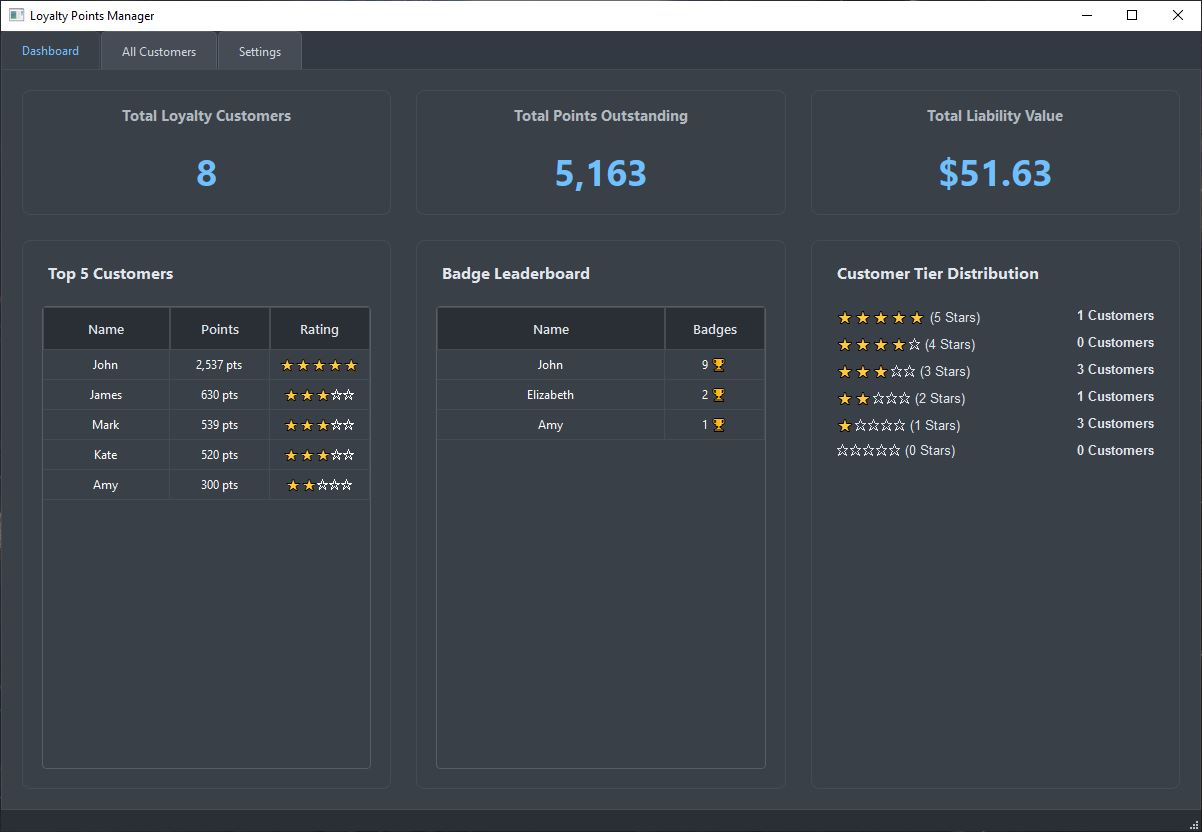
You now have a dedicated Dashboard tab that provides a real-time overview of your loyalty program the moment you open the app.
-
Live Business Stats: Instantly view Total Customers, Total Points in circulation, and the Total Liability Value of those points.
-
Top 5 Customers: A live leaderboard showing your most valuable shoppers.
-
Tier Distribution: A visual breakdown showing exactly how many customers are at the 1-Star, 2-Star, and elite 5-Star levels.
-
Badge Leaderboard: See which customers are unlocking the most achievements.
🏆 2. New Badges System
The app now includes a fully automated Achievements & Badges System to keep customers engaged.
Customers will now automatically unlock badges (and earn bonus points) for hitting specific milestones. The app tracks progress in the background across 5 unique categories:
-
🐖 Points Hoarder: Rewards for accumulating lifetime points.
-
🥇 Wallet Milestones: Rewards for hitting lifetime spending goals.
-
📅 Loyal Visits: Rewards for visiting multiple days in a row (streaks) or multiple times in one day.
-
🐳 High Rollers: Rewards for spending large amounts on a single receipt.
-
✂️ Savvy Shoppers: Rewards for redeeming points to pay for items.
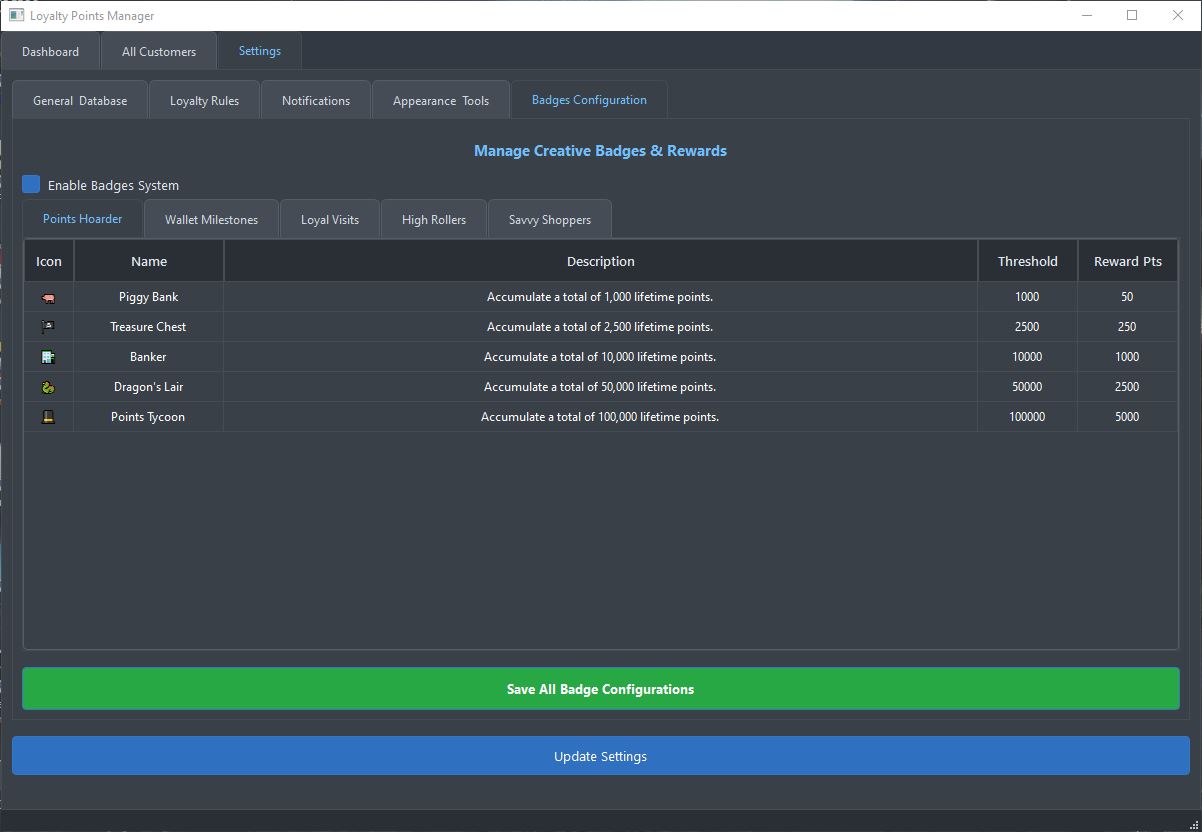
Note: You can fully customize the thresholds, rewards, and descriptions for all 25 badges in the Settings > Badges Configuration tab.
-
-
I have implemented several minor refinements to improve the application and polish the user interface.
What’s New
1. Secure Settings Access (Admin & Staff Modes)
A multi-level access system was added to protect your business logic and loyalty rules.
-
Administrative Lock: Sensitive configurations—such as point-to-currency ratios, rating thresholds, and badge rewards—are now encrypted and locked behind a secure master password.
-
Staff Mode: Employees can still process daily payments and view customer data, but they are restricted from modifying the underlying loyalty system rules. This prevents accidental changes and unauthorized "point manipulation."
-
Emergency Recovery: I have added a 16-digit Master Recovery Key system, ensuring that owners can always regain access to settings even if the admin password is forgotten.
2. Comprehensive Activity Logs & Audit Trail
To provide total transparency and fraud prevention, I have implemented a high-precision transaction ledger for every customer.
-
Transaction Transparency: Every single point change is now recorded in a permanent ledger. You can now see exactly when and why a balance changed.
-
Detailed Tracking: The logs capture
-
Points Earned: Automatically linked to specific invoice/document numbers.
-
Points Spent: Records the exact monetary value of redemptions and the points deducted.
-
Badge Achievements: Logs the specific achievement unlocked and the bonus points awarded.
-
-
High-Resolution Timestamps: Every action is recorded with a down-to-the-second timestamp, allowing you to audit your loyalty liability with confidence.
-


Please sign in to leave a comment.
Comments
75 comments