New User And Security Settings
Answered
I now see a new setting page for user and setting, with sub heading; General, Sales and Management.
Can someone throw more light on these and the distinction.
My major worry; is it possible to give access to a user other than the admin to access only products under management and not any other feature under management?
-

Hi,
If you need to allow user to access products only, set lower access level for "Products" section, and higher access level for all other sections.
Higher access level means more privileges.
For example, if you set access level 1 to a user you wish to grant access to products, you need to set level 1 for "Products" section (as in the screenshot below), and any higher access level (e.g. level 5) for all other sections in management.
This way, users with access level 1 will have access to products, but will not have access to other management sections.
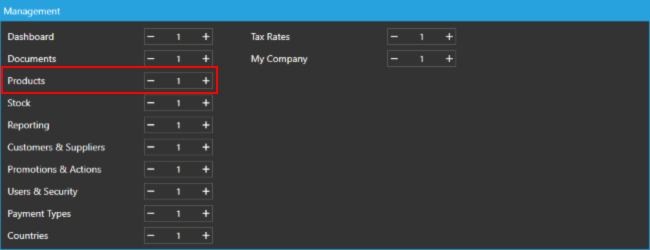
You can find some more relevant info on this feature request: https://help.aronium.com/hc/en-us/community/posts/115001027711-Privileges
Hope this helps.
Regards, Aronium team.
-
When accessing management from main screen, if user does not have permissions to access it, a password screen will open so other user (with enough permissions to access management) must "approve" this access, that time only.
From that moment, when approved, management sections access level will be applied for currently logged in user, so he will see products only, if set that way.However, if you are going to set permissions per management section, there may be no reason to deny access to management at all. So, you can leave management access available for all users, but restrict management sections access separately. This way, even if a user that has no privileges to see any management section opens it, he will be presented with an empty screen, the only thing he can do is close it.
Or, for example, let's say you decide that level 5 is required to see products section, you can combine these settings as follows:
- Give a user that needs access to products level 5
- Set management access to level 5
- Restrict access to other management sections (other then products) with access level higher then 5
- Leave products section at 0 (or any other level lower or equal to 5)
With this setup you will get the following:
- All users with lower access level then 5 will not be able to access management at all
- Users with level 5 or above will be able to access management
- Users with access level 5 will see only products in management
We believe that there are many ways to "play around" with access levels and to set them the way you want.
I hope this helps. If there is still something unclear, please let us know, we'll be glad to go thru it one more time.
Thanks, Aronium team.
Please sign in to leave a comment.
Comments
3 comments