Allow for no tax on purchases but default tax on sales

Most of my suppliers are out of state and do not charge sales tax. So when importing my products I do not want the purchase documents to show sales tax. However the products that were imported will have sales tax applied to them when sold in my store. Please allow for this. In addition it would be extremely helpful if the sales tax was not included in each line item on the main pos screen (when creating customer sales). It would be better to have an option to show sales tax only at the bottom or on each line show both the before and after tax price. Perhaps a global "simple sales tax" mode. In this mode each item would have the same global tax price and it could have a sub option for no tax on imports. Maybe I am wrong but it seems many stores are not paying sales tax on inventory purchases.
Let me know if I missed some way to accomplish the above with the tools/settings already available to me.
-

Hi Nick,
Regarding sales tax on purchase document, you can control it in the process of adding an item to document already.
Before you save an item, simply select "No tax" (or any other tax you wish to be set on that document item).
This tax selection will be applied to the item in current document only, selected tax rate for product in sales will remain unchanged and you will have your product sold with tax included, as required.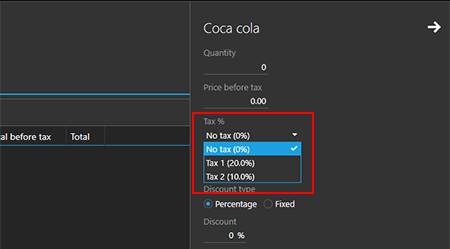
Regarding the ability to display prices without tax, that is something we have planned already, and, hopefully, this option will be included in some of the future updates.
-
I do not add items to documents manually. I use the CSV import. Can we have two columns on import? One for purchase tax price and one for sales tax price? Otherwise i need to go in and manually change every product either in the document or in the stock for sales. Or am I missing something? Sorry I didn't specify the CSV import earlier.
-
I see, thanks for the explanation.
Unfortunately, products import is not designed for documents import. As you already saw, it will update tax rates for existing products, if modified in CSV.
The only workaround we may come up to at this moment is creating special purchase print template for you, so tax rates are not displayed in printed document (even if they are set in document itself).
I am not sure if this may help, and how do you use purchase after import, but, if this is something that may be used as a workaround, please reach out to support@aronium.com with a request for modified print template, I believe this is something that can be done.
I am aware that modifying print template only is not a solution, but this is the only think we can do in short terms.
I'll talk to the team to see if it is possible to make the "tax" a non mandatory field, so you can skip it in CSV, so, if missing, existing products will not be affected, but "No tax" will be set to the purchase document created under the hub.
I hope it will be possible to create the following rules for CSV import:- If a product exists, but no tax is set, do not change it
- If a product imported via CSV do not exists, and not tax field is set, it will use the default ("No tax") rate.
-

Maybe if products could have 2 tax rates assigned: A "Purchase" rate and a "Sales" rate. By default they could be set the same. But in the case of no tax being charged on supplies the "Purchase" rate could be set to 0%, and this rate used on purchase documents, and anywhere the product cost is shown.
Setting a tax rate manually on purchase documents works for only that document, but then other reports & "Stock" section become confusing because they show "Cost" & "Cost incl. tax" using the tax rate set in the product, not the purchase tax rate. Also it's really annoying having to manually change the tax rate for each product when creating the purchase document.
For example:

This screenshot is from the "Stock" page. This product is purchased with no tax (0%) and sold with 20% tax. The "Value" columns are correct, but "Cost" and "Cost incl. tax" should be the same as no tax is involved.
Please sign in to leave a comment.
Comments
4 comments