Loyalty Points Manager

Hey everyone! I'm excited to introduce my brand new loyalty points manager app! It's designed to make keeping track of your loyalty points simple. And to make it even better, it comes with a built-in WhatsApp notification feature so you never miss an update on your points.
Let's jump right in and see how to use it. The app has two tabs: 'All Customers' and 'Settings'.
The "All Customers" Tab:

This tab is your primary interface for viewing customer loyalty data and processing point redemptions, and it has two main widgets:
1. Search Customers by Name:
-
Located at the top of this tab, you'll find a search bar (text input field).
-
Type a customer's name (or part of it) here, and the table below will instantly filter to show only matching customers, making it easy to find someone quickly.
-
Clearing the text in this field will display all customers again.
2. Customer Information Table:
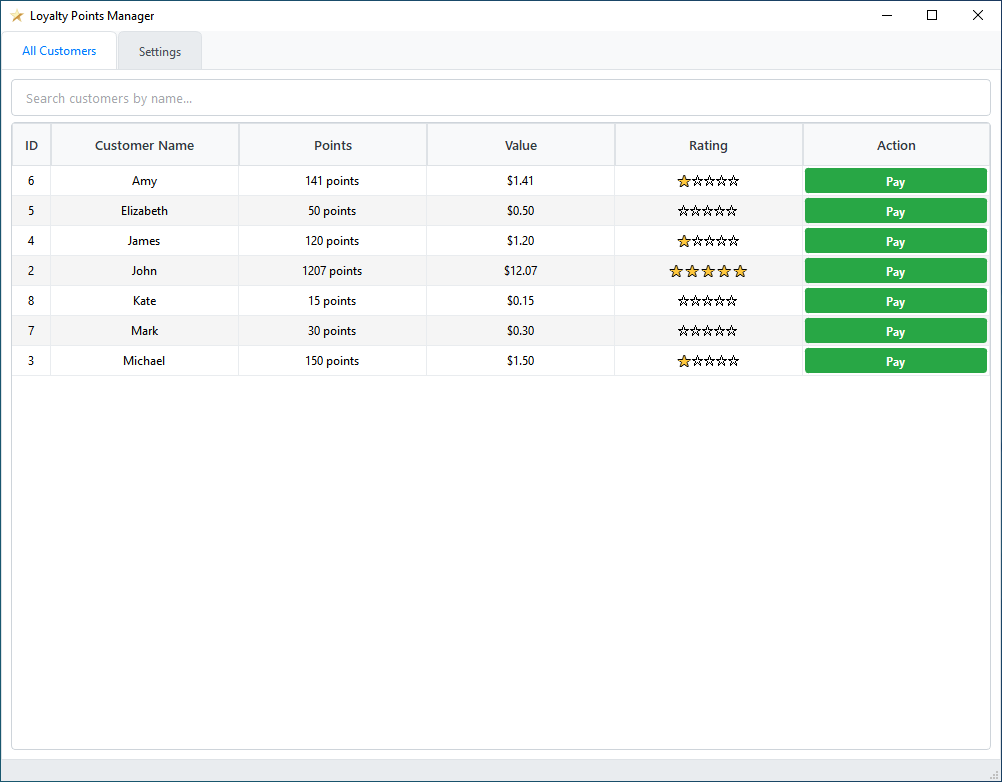
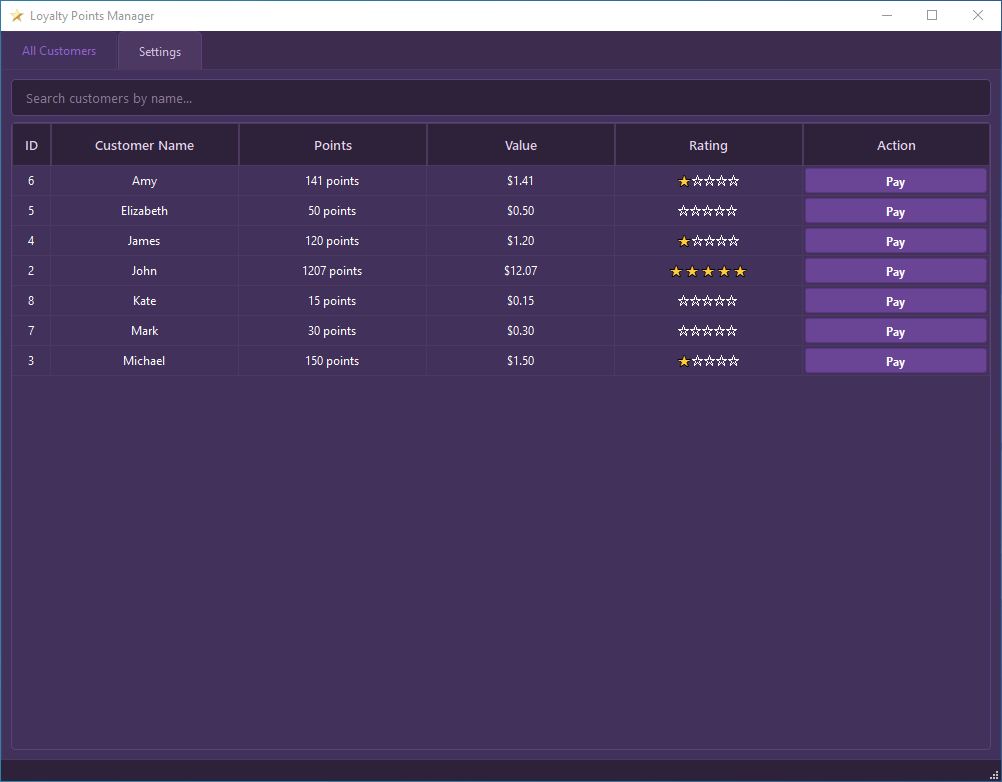
This is the main part of the tab, listing your loyalty program members. Each row represents a single customer, and the columns display specific details:
-
ID: Shows a unique identification number assigned to each customer in the system.
-
Customer Name: Displays the full name of the customer.
-
Points: Shows the customer's current loyalty point balance (e.g., "1250 points"). This value updates automatically as customers earn or spend points.
-
Value: Displays the monetary equivalent of the customer's current points (e.g., "$12.50"), calculated based on the "Points per 1 [Currency Symbol]" setting you configured in the "Settings" tab.
-
Rating: Shows a visual star rating (e.g., ⭐⭐⭐☆☆) representing the customer's current loyalty tier, determined by their total points and the "Customer Rating Settings."
-
Action ("Pay" Button): Each customer row features a "Pay" button. Clicking this button for a specific customer opens a new dialog window, allowing you to process a payment using that customer's accumulated loyalty points.
The "Settings" Tab:
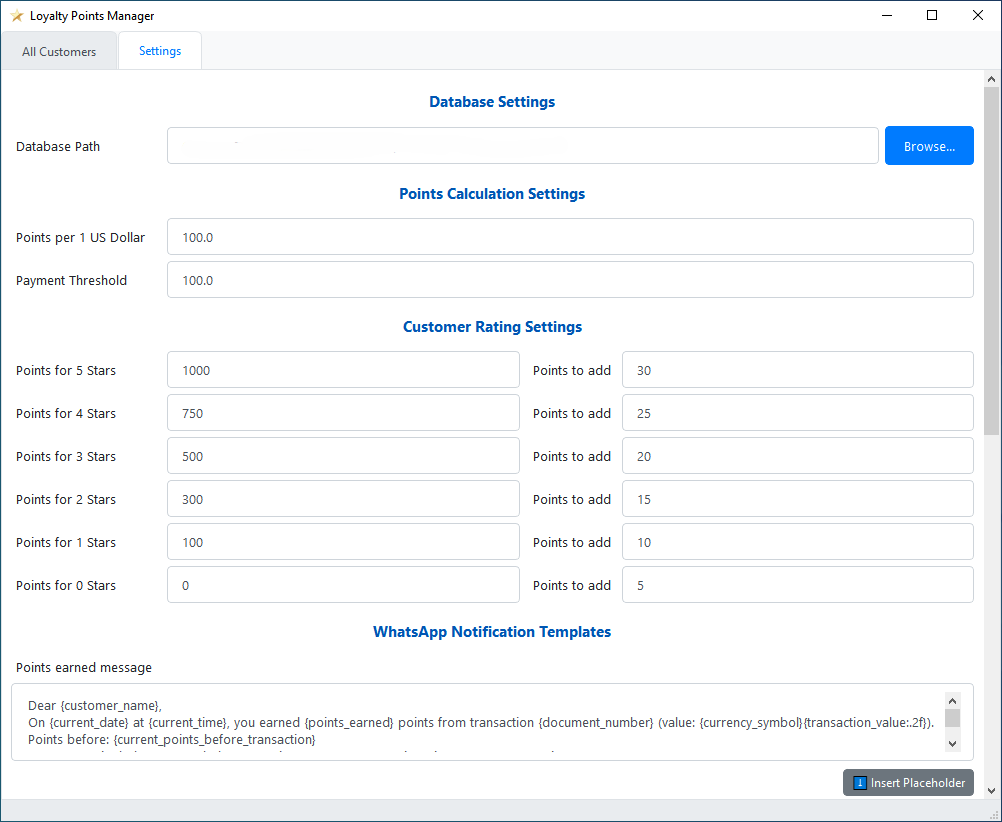
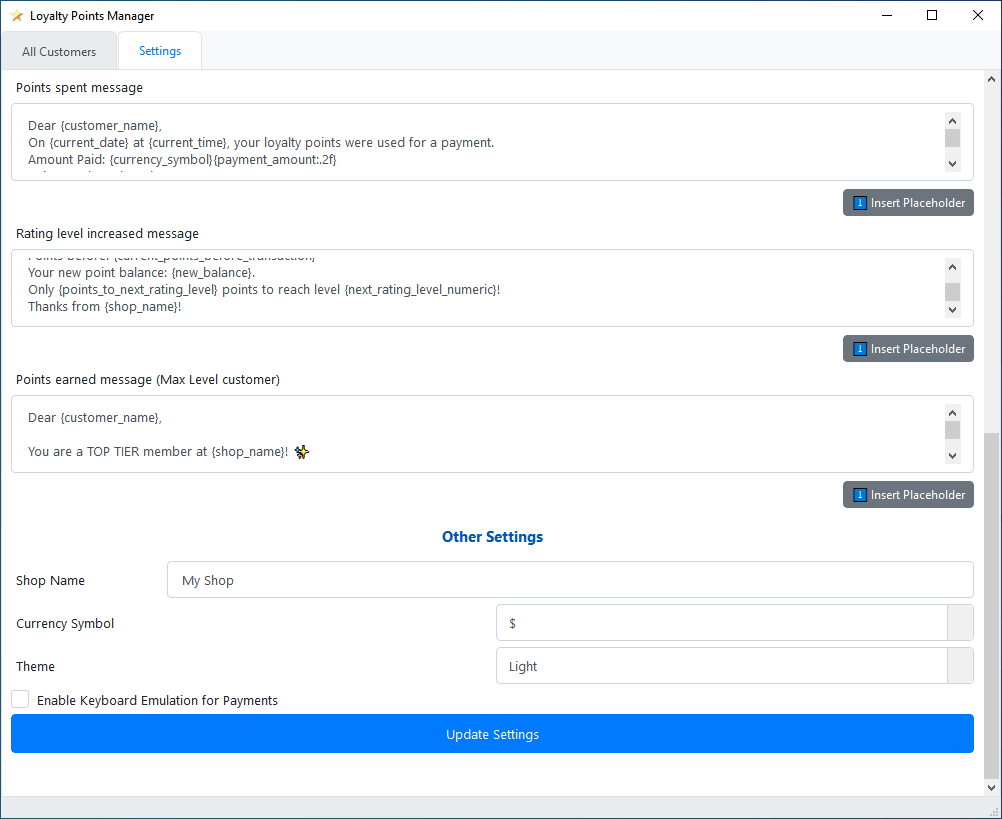
This tab allows you to customize how the Loyalty Points Manager operates. Here, you can configure database connections, points calculation rules, customer ratings, notification messages, and application appearance. Settings are grouped into expandable sections for clarity.
Database Settings
Configure how the application connects to your customer and transaction data. This section includes:
-
Database Path: Enter the full file path to your SQLite database file. Alternatively, click "Browse..." to open a file dialog and select your database file. The application will attempt to connect to this database when the path is set or changed.
Points Calculation Settings
Define how loyalty points are calculated and can be used. This section includes:
-
Points per 1 [Currency Name] (Input Field): Enter the number of loyalty points a customer earns for each unit of your selected currency spent (e.g., if set to 100, and currency is "$", then $1.00 spent earns 100 points). The label "[Currency Name]" updates based on your "Currency Symbol" choice.
-
Payment Threshold (Input Field): Enter the minimum transaction value (in your currency) required for a customer to automatically earn points for that sale (e.g., if set to 10.00, sales below this amount won't earn points automatically).
Customer Rating Settings
Define point thresholds for different customer rating (star) levels and the points awarded per transaction for customers at each level. This section includes:
-
Points for X Stars (Input Field): Enter the total loyalty points a customer must accumulate to achieve a specific star rating (e.g., "Points for 5 Stars": 1000).
-
Points to Add (Input Field): Enter the number of additional points a customer at this X-star level will earn per qualifying transaction (e.g., for a 5-star customer: 30 points).
WhatsApp Notification Templates
Customize the automated WhatsApp messages sent to customers. Default templates are provided, which you can edit:
-
Points earned message (Text Area): Edit the template for messages sent when a customer earns points.
-
Points spent message (Text Area): Edit the template for messages sent when a customer redeems points.
-
Rating level increased message (Text Area): Edit the template for messages sent when a customer's rating level increases.
-
Points earned message (Max Level customer) (Text Area): Edit the template for messages sent when a top-tier (max rating) customer earns points.
"⬇️ Insert Placeholder" Button (per template):
Below each template editor, click this button to see a menu of available placeholders (e.g., {customer_name}, {points_earned}). Selecting a placeholder inserts it into the template at your cursor's position, allowing for dynamic message content.
Other Settings
Configure general application behavior and appearance. This section includes:
-
Shop Name (Input Field): Enter your shop or loyalty program name. This name can be used in WhatsApp notification templates (via the {shop_name} placeholder).
-
Currency Symbol (Dropdown Menu): Select the currency symbol (e.g., $, €, £) used throughout the application and in calculations. This also updates the label for "Points per 1 [Currency Name]".
-
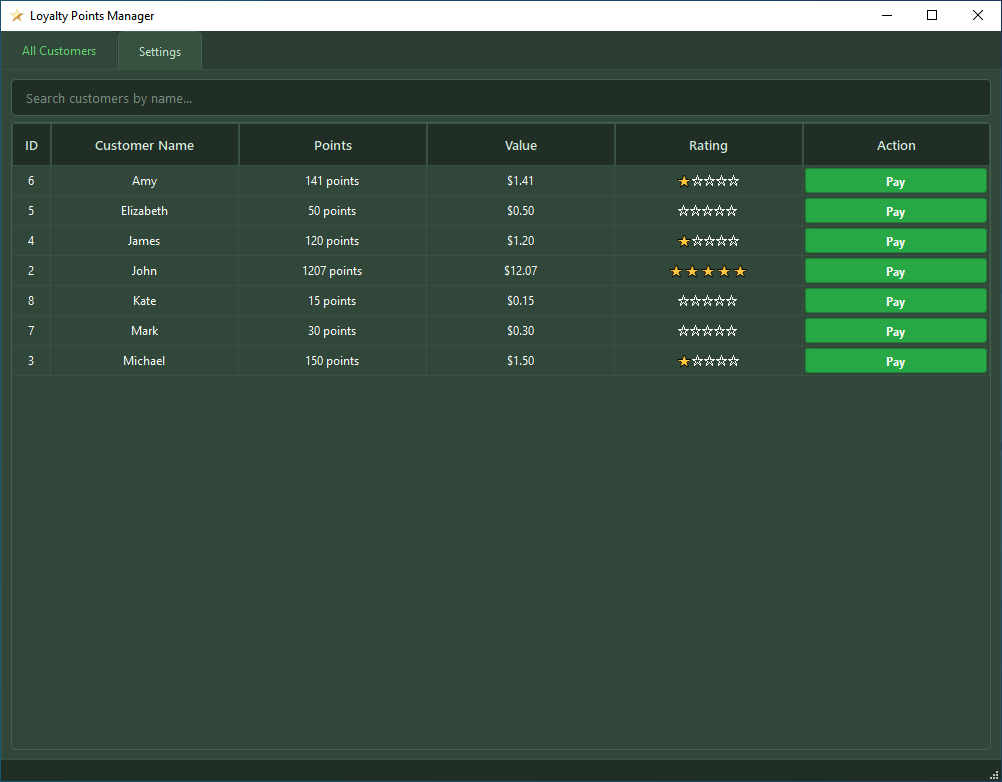
Theme (Dropdown Menu): Choose the visual theme for the application. The application's appearance will change immediately. The available themes include:
Light
Dark

Green
Blue

Red

Purple
-
Enable Keyboard Emulation for Payments (Checkbox): If checked, the application will attempt to type the payment amount into your POS system automatically when processing a points payment. Important: Ensure your POS payment field is active before confirming payment.
Update Settings (Button)
Click this button to save all changes made in the "Settings" tab. Some changes (like the Database Path) may trigger a data reload. A confirmation message will appear briefly after saving.
Note: This app is not yet complete, but I wanted to give you a preview. Stay tuned for more details.
-
How to use the Loyalty Points Manager with Aronium
1. Setting Up Customers in Aronium for Loyalty Points:
For the Loyalty Points Manager to see your customers and their points, you must use the Postal Code field in the Aronium customer profile. This is the only field required for the basic loyalty functions to work.
When you create or edit a customer in Aronium:
-
Postal Code Field: Use this field to store the customer's current Loyalty Points.
-
Important: When adding a new customer, you must enter 0 in the Postal Code field. If this field is left blank, the customer will not appear in the Loyalty Points Manager.
-
Example: For an existing customer with 141 points, enter 141.
-
2. Setting Up WhatsApp Integration:
If you plan to use features that send messages to customers via WhatsApp, you must fill in the Phone Number and Code fields for each customer in Aronium.
-
Phone Number Field: Store the customer's actual phone number here.
-
Code Field: Use this field to store the customer's unique WhatsApp API Key.
If these fields are left blank, the core loyalty points features will still work, but you will not be able to receive any WhatsApp notification for that customer.
How to Get the WhatsApp API Key using CallMeBot
The API key must be generated by each customer from their own WhatsApp account.
Instruct your customer to follow the official step-by-step instructions on the CallMeBot website to get their key:
Official CallMeBot Guide: https://www.callmebot.com/blog/whatsapp-from-updown-io/
Once the customer provides you with their API key, enter it into the "Code" field in their Aronium profile.
-
-
Hey everyone, so sorry about the delay.
Here's the link:
https://mega.nz/file/UYsCUDiK#BKtvW54E1PHpg94WtgPiTCwbWyArhhxf3imY0osMbwk
Feel free to check it out and let me know what you think.
-
Hi @Mohamed Mahfouz,
Thank you for your feedback. I'll add support for the Egyptian pound, multiple languages, and a button to manually send messages to the customer.
Regarding the other ways to calculate points, could you please explain a bit more? I want to make sure I understand your suggestion completely.
-

hi John
@John
thank you for your effort
I suggest adding an additional method for calculating points, meaning that it's determined based on the amount. For example, if a customer buys for $1, one point is added, or $2, two points are added, and so on.
I will specify in this field the number of points for each dollar.
For example, I can adjust the settings:
Every $1 gives 1 point.
And another field where I specify the redemption value.
For example, every 10 points gives 1 dollar. -
Hello everyone A major update to the Loyalty Points Manager is now available, packed with new features designed to make the application more powerful, flexible, and accessible for your business.
What's New in Loyalty Points Manager 2.0!
1. Added Currency Support: Egyptian Pound (EGP)
Currency options have been expanded to better serve users in Egypt. You can now select the Egyptian Pound (EGP) as your currency symbol in the settings.
2. Added Multi-Language Support and Customization
The application now supports multiple languages. You can switch between built-in languages (like English and Arabic) or even create and customize your own.
Key Features:
-
Switch Languages: Go to Settings -> Other Settings -> Language to instantly change the application's display language.
-
Arabic Support: Full Right-to-Left (RTL) layout support is automatically enabled when you select Arabic.
-
Customize Translations: Click the "Customize..." button to open the Language Editor. Here you can tweak any phrase or label to better fit your business's terminology.
-
Add Your Own Language: Click the "+ Add New..." button to create a completely new language profile for the application.
3. Added New Points Calculation Method: "Points per Amount Spent"
You now have more control over how customers earn points. Alongside the original "Fixed Points" method, a new, dynamic option has been introduced: Points per Amount Spent.
This method is perfect for rewarding customers proportionally based on how much they spend.
How it Works:
-
Old Method ("Fixed Points"): Awards a flat number of points if a transaction is over a certain threshold (e.g., "Get 20 points for any purchase over EGP 100").
-
New Method ("Per Amount Spent"): Awards points for every "chunk" of money spent (e.g., "Get 1 point for every EGP 50 spent").
You can set different rules for each customer star rating, allowing you to reward your most loyal customers more generously!
How to switch:
-
Go to the Settings tab.
-
Under "General Points Settings," find the Points Earning Method dropdown.
-
Select "Points per Amount Spent". The settings page will instantly update to show the new rule configuration options.
4. Added Manual WhatsApp Message Button
A new button allows you to send a quick status update or a special message to a customer without waiting for a transaction.
Each customer row in the "All Customers" tab now has a "Send message" button.
How to use it:
-
Find the customer you want to contact in the main table.
-
Click the "Send message" button in their row.
-
A confirmation box will appear. Click Yes.
-
A message will be sent to the customer using the "Custom message" template from your settings. This is a great way to re-engage customers, inform them of their current point balance, or send a personalized thank you.
-
-
Hey @MOHAMED MAHFOUZ
Here's the download link:
https://mega.nz/file/5Q8E1ZBI#rCun6KRMhFTqO3MVTdJlzhLwV9NCJeH4SNtpAfMY81s -

Peace be upon you and God's mercy and blessings. Greetings.
I am Abdul Hakeem from the Kingdom of Saudi Arabia.
Greetings to all.
Thank you very much, John.
And also, thank you very much, Mohamed Mahfouz.
I have been following this discussion for a while and downloaded the first version. I was pleased with Mohamed Mahfouz's request.
Today, I downloaded the second version, John. It is a very nice program and an excellent idea. However, my observations are that the program is slow. I hope you add the Saudi Arabian currency (SR). Also, when I started translating, I got the following error message and I could no longer run the program.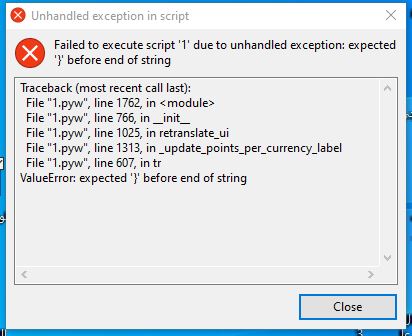
-
Hey @روائع الخليجية للعود,
Thanks a lot for your valuable feedback. Much appreciated. Here’s the updated version:
https://mega.nz/file/sYlh2QrZ#_QZCa7ZBOT3b2xXKYhZSTOCoxMkssX3ejtsXEYJXqIU
I’ve added the Saudi currency symbol based on your request 😊.
-

Thank you John, everything is good except that WhatsApp messages do not work, even though I created an account in CallMeBot and tried to call and it succeeded, but it does not send. I hope to see more. Is there a solution to slow down the program after connecting to the database in Aronium?
-
Hey @Gulf Oud Gulf Oud,
About the WhatsApp messages, could you please let me know the steps you followed when setting it up in Aronium? That will help me understand how you configured it and where the issue might be coming from.Also, regarding the slowdown after connecting to the database in Aronium, could you explain a bit more about what you mean?
-
How are you John? Please clarify the method of communication after creating an account on TextMeBot, because I created an APIKey and copied the key to the client in the Aronium program, and despite that, it does not send WhatsApp messages. Please clarify the method of connection and sending so that everyone understands this. Regarding the slowness, it is when searching for clients and also when navigating in the program in general.
-
Hey @Gulf Oud Gulf Oud,
Here's how to set up CallMeBot to work with Aronium:
Step 1: Get Your Free API Key from CallMeBot
This is the most important step. The "API Key" is like a secret password that allows our Loyalty App to use the CallMeBot service. You only need to do this part once.
-
On your Smartphone, open your Contacts app.
-
Create a new contact. Name it something like CallMeBot Service.
-
For the phone number, enter: +34 644 87 21 57
-
Save the contact.
-
Now, open WhatsApp and find the CallMeBot Service contact you just created.
-
Send this exact message to that contact:
I allow callmebot to send me messages(You must send this exact text for it to work)
-
In a few seconds, the service will reply with a message that contains your personal API Key. It will look something like this:
"Welcome! Your APIKEY is 1234567. You can now use the API to send me messages..."
-
Copy that number (your API Key). Keep it safe. You will need it for every customer you want to send notifications to.
Step 2: Prepare Your Customer's Information in Aronium
For each customer who wants to receive WhatsApp notifications, you need to enter two pieces of information into their Aronium profile.
-
Open Aronium and go to Management -> Customers.
-
Find the customer you want to set up and click Edit.
-
You will see the customer's profile page. We need to fill in two specific fields:
-
The "Phone" field: Enter the customer's full WhatsApp number. You MUST include the country code.
-
Correct: 15551234567 (for a US number)
-
Correct: 447912345678 (for a UK number)
-
Incorrect: 555-123-4567 (do not use dashes or spaces)
-
Incorrect: 07912345678 (do not use the leading zero if a country code is present)
-
-
The "Code" field: This is where you will paste the API Key you received from CallMeBot in Step 1. It must be an exact copy.
-
Visual Example of the Aronium Customer Profile:
Imagine this is your customer's profile in Aronium:
-
Name: John
-
Phone: 15551234567 (<- Customer's WhatsApp Number with Country Code)
-
Code: 1234567 (<- Your CallMeBot API Key)
- Click Save.
Repeat this process for every customer who wishes to receive notifications. You will use the same API Key for all your customers, but their phone number will obviously be different.
Step 3: Customize Your Messages (Optional)
The Loyalty Points Manager App comes with pre-written messages, but you can change them.
-
Open the Loyalty Points Manager application.
-
Go to the Settings tab.
-
Scroll down to the "WhatsApp Notification Templates" section.
-
You can edit the text in any of the boxes, like "Points earned message". You can use the "Insert Placeholder" button to add dynamic information like the customer's name ({customer_name}) or their new point balance ({new_balance}).
Step 4: Test It!
You can test if the setup is working without having to make a sale.
-
Open the Loyalty Points Manager app.
-
On the "All Customers" tab, find the customer you just set up.
-
In their row, on the far right, click the "Send message" button.
-
Confirm that you want to send a custom message.
-
Within a few seconds, that customer should receive the "Custom message" template on their WhatsApp.
If the test works, the automatic notifications for earning and spending points will also work!
Troubleshooting
Problem: The customer is not receiving messages.
-
Check the API Key: Is the API Key in the Aronium "Code" field an exact copy of the one you received from CallMeBot? Even one wrong digit will cause it to fail.
-
Check the Phone Number: Is the phone number in the Aronium "Phone" field correct? Does it include the country code at the beginning (e.g., 1 for USA, 44 for UK, 91 for India)? Are there any spaces, dashes, or symbols? It must be numbers only.
-
Check WhatsApp: Has the customer accidentally blocked the "CallMeBot Service" contact on their phone?
-
Wait a Moment: Sometimes the service can be a little slow. Wait 30-60 seconds. If it still doesn't arrive, check the steps above.
I've just modified the app to be significantly faster and smoother. I've rebuilt the core functionality to optimize how data is handled, ensuring a more efficient and responsive experience. Give it a try and let me know what you think.
Download link:
https://mega.nz/file/dRkwVLKa#5AfwHHHFqBf9X9q-BBhLOgSnPA74JVIC4MtiqaDzlu4
-
-

@John
thank you for your effort and you did a great job....!
Kindly add currency Dirham "AED" or "DH".
And once we create a new customer on the POS, unfortunately that customer not appearing on the Loyalty Points Manager. could you please explain..? Also Automatic message for the earning points is not working.
-
Hey @JBM,
Thank you so much for the kind words and valuable feedback. I’m glad to hear you're happy with the work so far.
-
Currency Added: The Dirham currency ("AED" / "DH") has been added.
-
Customer Sync Fixed: The issue with new POS customers not appearing in the Loyalty Points Manager has been resolved. They should now sync correctly.
-
Automatic Messages Fixed: The automatic messaging for earning points is now working as expected.
Could you please check on your end and confirm that everything is working correctly now?
Download link:
https://mega.nz/file/MV1TBRKJ#apXn1bIvsJoN_tlXdBm4GPY3PbIG4FJhzKBVS-S7uj0
-
-
Hey Shyam Sundar,
As far as I know, the service does work in India, so this might be a specific issue that only the developer can investigate. I recommend contacting the author of CallMeBot directly for support. He'll be able to look into the problem from his side.
You can reach him via the contact form on the official website.Just to be sure we've covered everything, could you explain the exact steps you followed in detail? Sometimes a tiny, easily missed detail is the root cause.


Please sign in to leave a comment.
Comments
75 comments